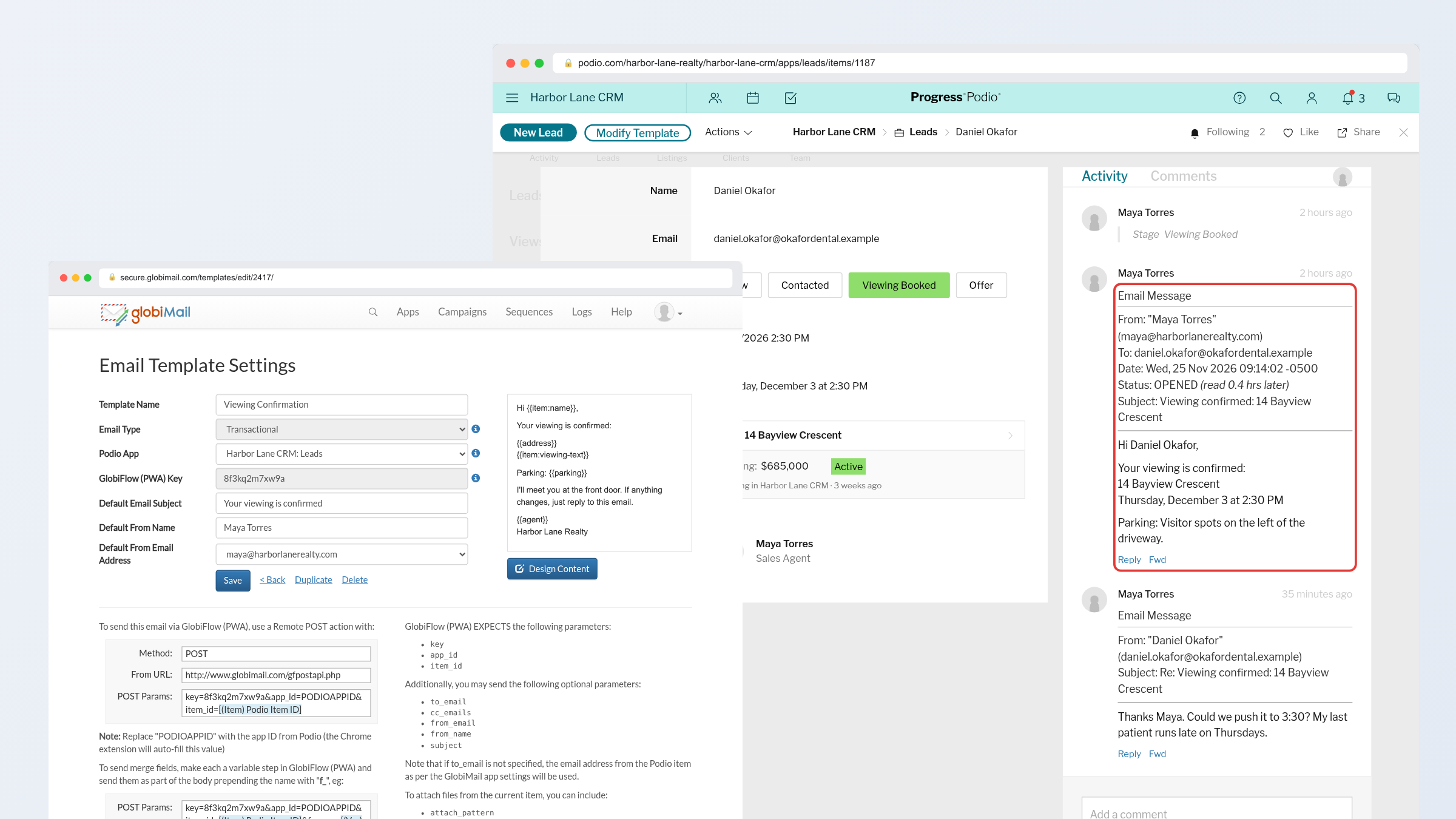
Maya Torres books about 40 property viewings a week at Harbor Lane Realty. Each one used to end the same way: she moved the lead to "Viewing Booked" in Podio, then opened Gmail and typed the address, the time and her phone number into a confirmation email. On a busy Friday she skipped three of them. Two of those buyers didn't show.
The confirmation is the same email every time. Only five or six details change. That is a job for Podio Workflow Automation, as long as the email it sends behaves like one Maya wrote herself.
What they tried first
A Gmail canned response. Faster to type, still manual. It still depended on Maya remembering, and the email never reached Podio. When a buyer replied "can we make it 4:30?", the reply sat in Gmail and the lead item showed nothing.
PWA's Send Email action. It sent on time. It also added Podio's "report abuse" footer to a note about a house viewing. Two buyers asked if it was spam.
What the agency needed: an automated email that comes from Maya's address, lands on the lead item as a comment, tracks whether the buyer opened it, and brings the reply back to the same item.
The build: a GlobiMail template, sent from a PWA flow
GlobiMail Email Templates can be sent from any PWA flow with a Remote POST action. GlobiMail fills the template with data from the Podio item, sends it, and logs it on that item like any other GlobiMail email.
The Leads app already had these fields:
- Name and Email
- Stage, a category with "New", "Contacted", "Viewing Booked" and "Offer"
- Viewing Date, a date field with a time
- Listing, a relationship to the Listings app (which holds the address and parking notes)
- Agent, a contact field
Step 1: make the date readable
GlobiMail inserts Podio field values as the API returns them. You can't reformat them inside the template. A raw date reads like a database row, so add a Calculation field to the Leads app called Viewing Text:
moment(@Viewing Date).tz('America/Toronto').format("dddd, MMMM D [at] h:mm A")
That turns the date into "Thursday, December 3 at 2:30 PM". Pick your own time zone.
Step 2: create a transactional template
In GlobiMail, open Email Templates from the account menu and click Create New Template. Two settings matter.
Email Type: Transactional. A transactional email is one-to-one, about something the recipient already asked for. It looks like a normal email and gets no unsubscribe footer. Commercial templates are for marketing. They get an unsubscribe footer and go out through GlobiMail's campaign servers. You can't switch the type after creating the template, so pick it right.
Podio App: Leads. Linking the template to an app lets you insert that app's fields as tokens. A template set to "Any App" can only use custom merge fields.
Fill in the Default Email Subject, Default From Name and Default From Email Address. The flow can override all three.
Then design the content. Fields from the Leads app use the field's external ID: {{item:name}}, {{item:viewing-text}}. Custom merge fields have plain names. The agency's template:
Hi {{item:name}},

Your viewing is confirmed:

{{address}}
{{item:viewing-text}}

Parking: {{parking}}

I'll meet you at the front door. If anything changes, just reply to this email.

{{agent}}
Harbor Lane Realty
(555) 014-2290
{{address}} and {{parking}} live on the related Listing item, not on the lead. GlobiMail only reads fields from the item it sends from, so the flow has to pass those values in. {{agent}} gets the same treatment, because a contact field's raw value isn't a tidy first name.
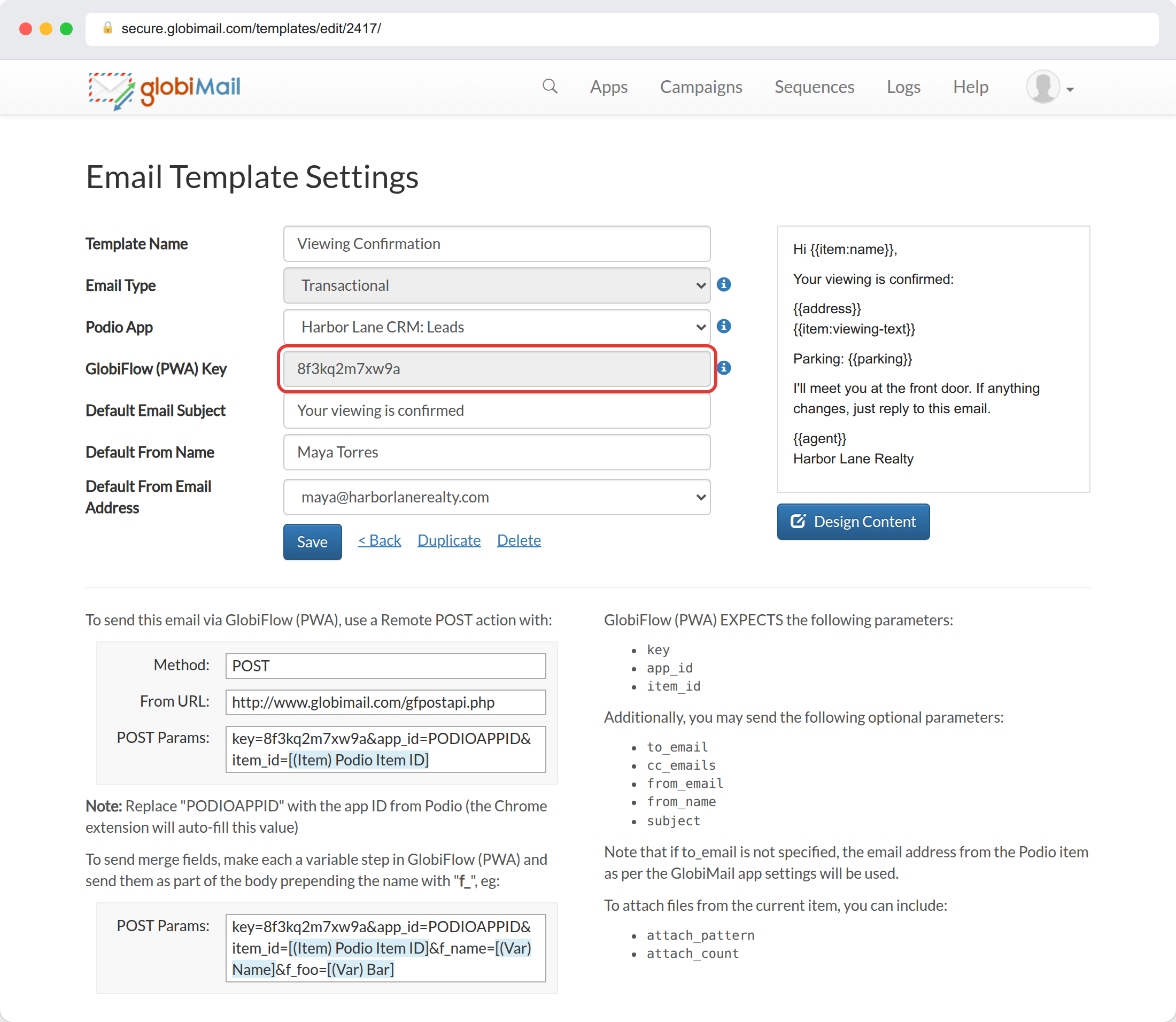
Save the template. The settings page now shows its GlobiFlow (PWA) Key and the exact Remote POST parameters to use.
Step 3: build the flow
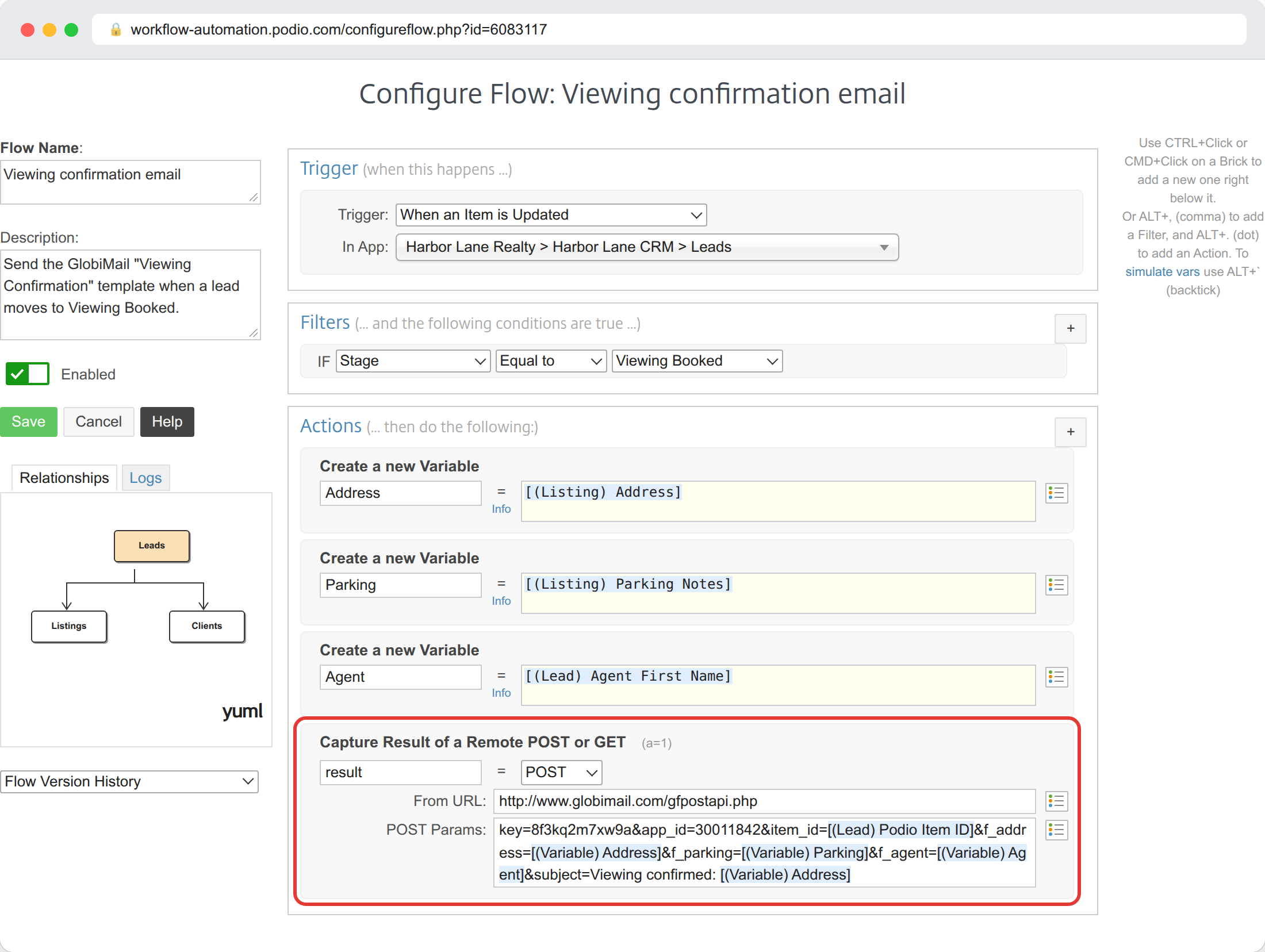
In Podio Workflow Automation, create a flow on the Leads app:
- Trigger: When an Item is Updated, in the Leads app.
- Filter: Stage is equal to "Viewing Booked". Add a second condition that Stage held a different value before this update. Without it, every later edit to a booked lead sends the confirmation again.
- Create a new Variable for each custom merge field: Address and Parking from the related Listing, and Agent set to the agent's first name.
- Capture Result of a Remote POST or GET, method POST, to
http://www.globimail.com/gfpostapi.php(the URL shown on the template's settings page).
The POST params:
key=8f3kq2m7xw9a&app_id=30011842&item_id=[(Lead) Podio Item ID]&f_address=[(Variable) Address]&f_parking=[(Variable) Parking]&f_agent=[(Variable) Agent]&subject=Viewing confirmed: [(Variable) Address]
Three parameters are required: key (the template's PWA key), app_id (the Podio app ID of Leads) and item_id. Everything starting with f_ fills the matching custom merge field: f_address replaces {{address}}.
The subject parameter overrides the template's default subject, which is how the address gets into the subject line. Merge tags only work in the body. The subject comes from the flow. You can also pass to_email, cc_emails, from_email and from_name. The agency left to_email out: GlobiMail then uses the lead's email address, as set up for the Leads app in GlobiMail.
If you have the GlobiMail Chrome extension installed, PWA shows a GlobiMail brick, "Send a GlobiMail Email Template". It lists your templates in a dropdown, fills in the key and app ID, and adds a row for each custom merge field. It's the same Remote POST underneath, with less copying and pasting.
Sending the paperwork too
The same pattern covers accepted offers. When a lead moves to "Offer", a second flow sends a different transactional template. The signed offer PDF is already on the item, so the POST adds two parameters:
attach_pattern=Offer-*.pdf&attach_count=1
GlobiMail attaches files from the current item whose names match the pattern. attach_count caps how many it takes. Files over 10 MB are skipped, so keep scanned contracts small.
When a send fails
PWA's log only says "Error: HTTP Returned Code 400". GlobiMail sends a reason, but PWA doesn't show it. Check these first:
- Wrong app_id. It must be the Podio app ID of a connected GlobiMail app, and it must match the app the template is linked to.
- No From address. Set a Default From Email Address on the template or pass
from_email. Podio.com addresses aren't allowed. - Unsubscribed recipient. If the address unsubscribed from that app, GlobiMail refuses to send. That applies to transactional templates too.
- Sending limit reached for the month or hour on your plan.
Bursts are fine. GlobiMail queues sends past 5 a second and works through them, so a bulk update of 60 leads won't lose any emails.
The result
Maya now books a viewing by changing one field. The confirmation leaves within a minute, from her own address, with the right house, time and parking notes.
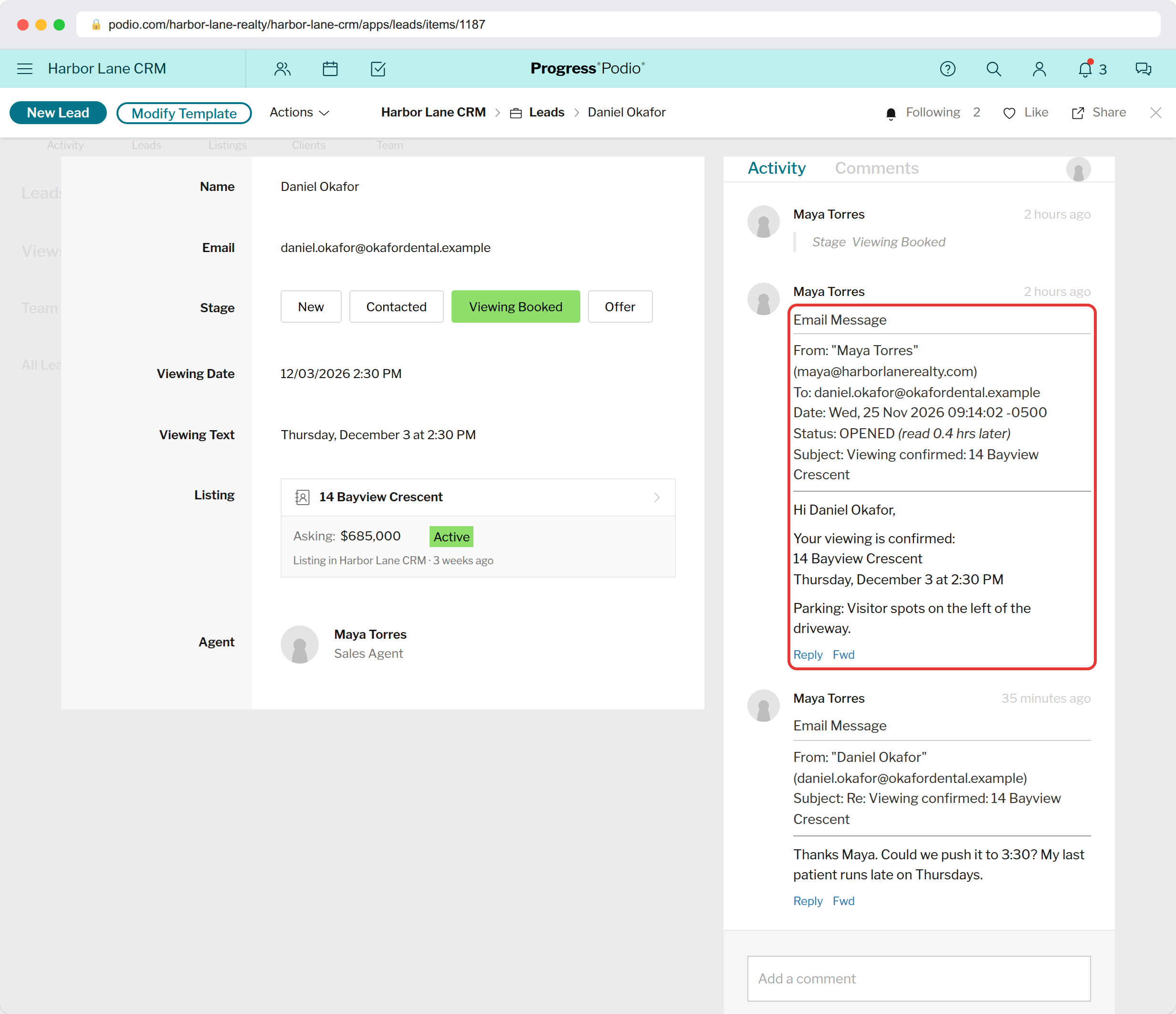
The email appears as a comment on the lead. GlobiMail tracks opens on it, so she can see who never read theirs and call them the day before. When a buyer replies to move the time, the reply lands on the same lead item as a new comment.
No-shows dropped from about four a week to one. Nobody types the email anymore, so nobody forgets it.
Set it up
You need a GlobiMail account with the Podio app connected, and a Podio plan that includes Workflow Automation. Create the template, copy the POST parameters from its settings page into a flow, and change a test item's Stage. The first confirmation goes out on the next update.