A tenant at unit 4B says she reported the bathroom leak in March. The property manager remembers the email. He can't find it. It lived as a comment on a Podio tenant item, and that item was deleted in a duplicate cleanup five weeks ago.
Podio has no undo for a deleted item. The comments go with it, and every email GlobiMail logged there goes with the comments.
The setup that worked until it didn't
The firm in this example manages 340 units with 11 people. Their Podio workspace has four apps: Tenants, Units, Leases and Maintenance Requests. GlobiMail logs every tenant email as a comment on the right item, and staff reply from inside Podio. About 2,600 emails a month pass through it.
That arrangement is good for daily work. Everything about a tenant sits on one item. It is bad for records, because the record is only as safe as the item. One wrong click by a coordinator merging two "Dana Whitfield" items, and fourteen months of correspondence vanished.
What they tried first
A shared Gmail BCC. Staff were told to BCC records@ on everything they sent. Some did. Nobody could make tenants BCC it on their replies, so half of every thread was missing.
Podio's Excel export. It exports field values. The activity stream, where the emails live, does not come with it.
A weekly "save to PDF" habit. It lasted three weeks.
Each workaround depended on a person remembering to do something. The archive needs to happen whether anyone remembers or not.
The build: GlobiMail Email Archiving
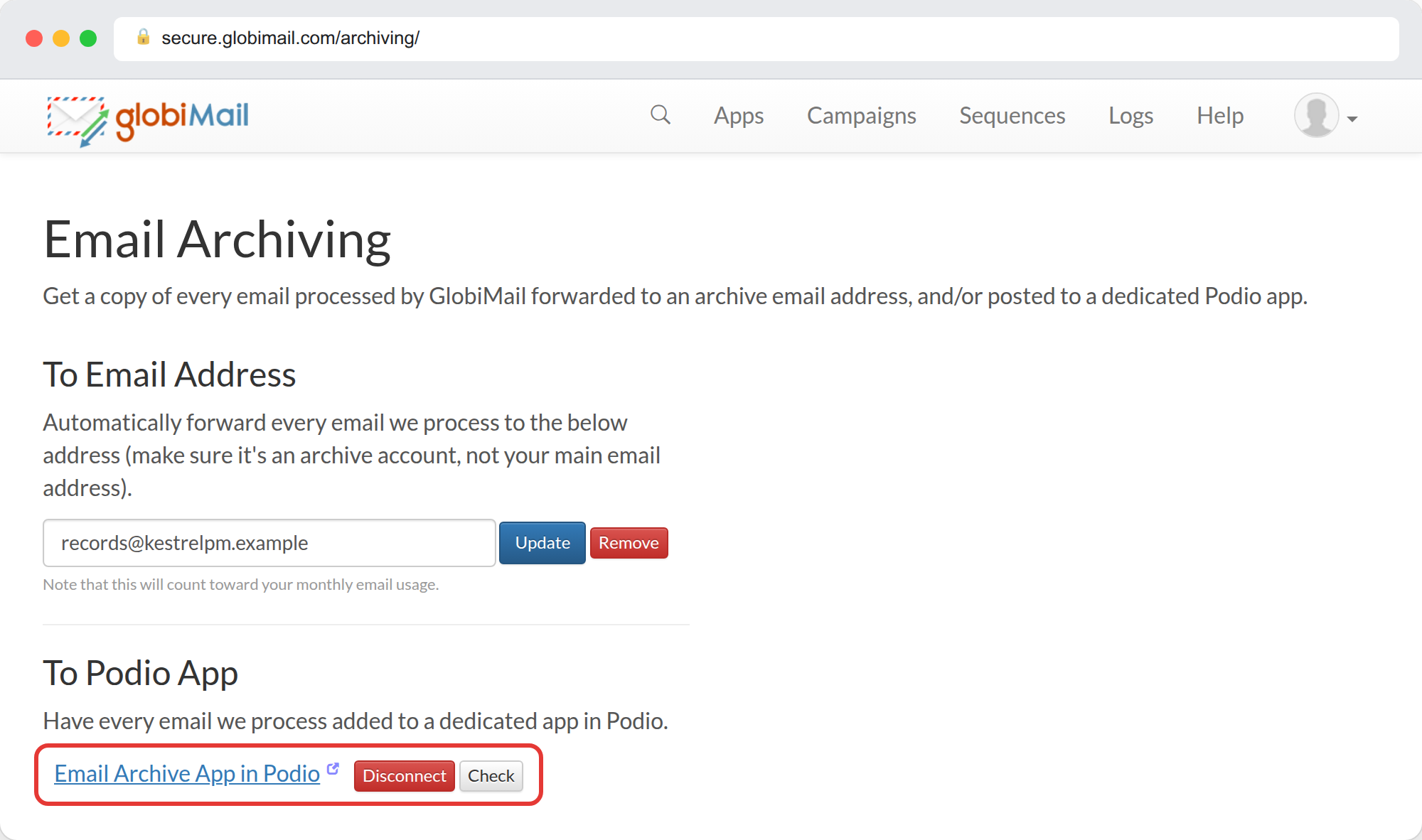
GlobiMail already handles every email on the account, inbound and outbound. Email Archiving tells it to keep a second copy of each one, away from the items your team edits and deletes. It lives on the Email Archiving page of your GlobiMail account and has two independent options. You can use either or both.
Option 1: forward to an archive mailbox
Enter an address in To Email Address and save. From then on, GlobiMail forwards the raw message of every email it processes to that address, headers and attachments intact.
Use a dedicated archive mailbox, not anyone's working inbox. Forwards count toward your monthly email allowance, so 2,600 processed emails means roughly 2,600 extra on the meter. Check your plan has room.
Option 2: archive into a Podio app
This is the one the property firm cared about. Under To Podio App, pick a workspace and click Create Archive App. The list only shows workspaces where you are an admin. This option needs a Premium plan (or an active trial).
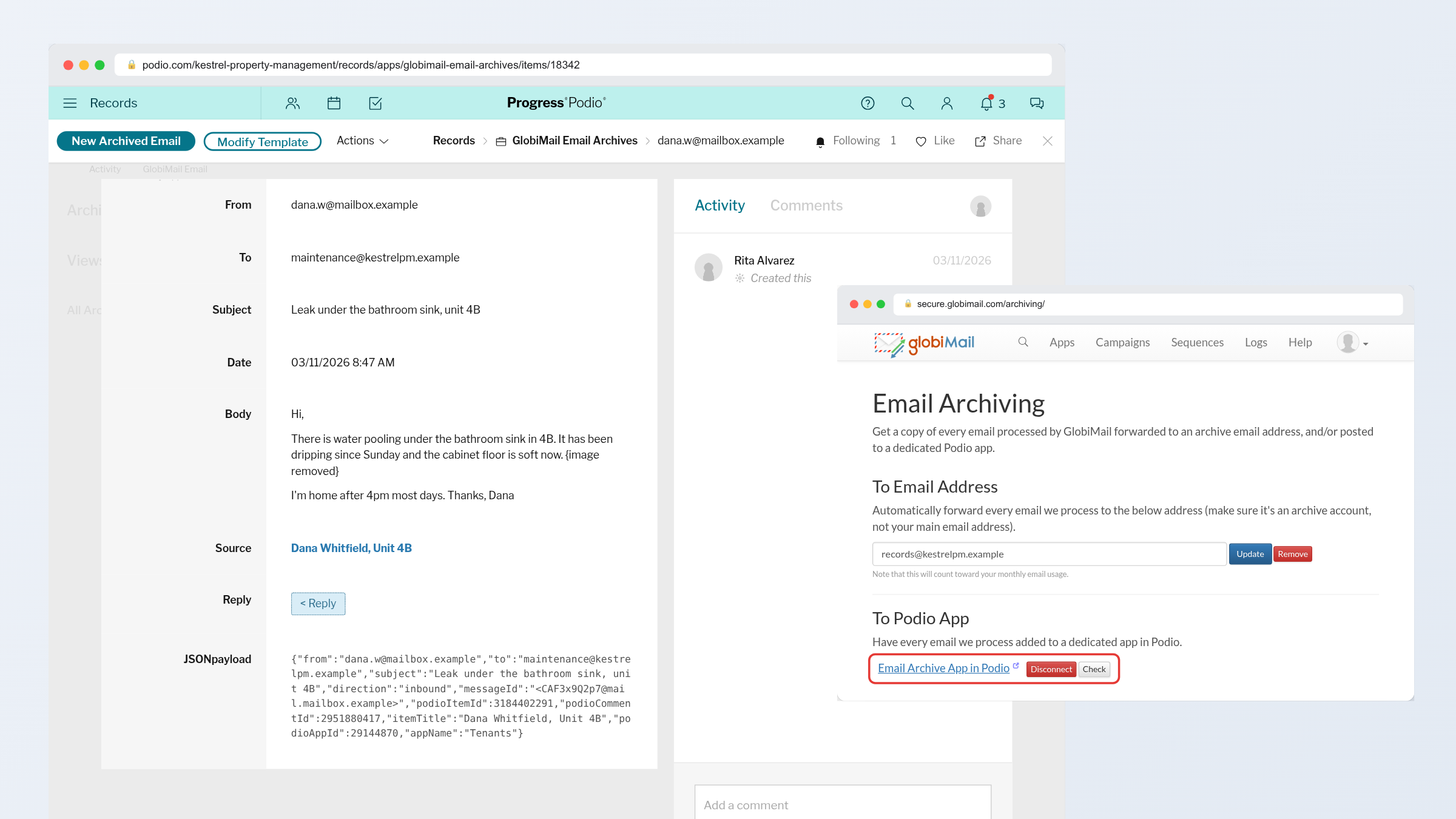
GlobiMail creates a new app called GlobiMail Email Archives with the item name Archived Email. Every processed email becomes one item.
Put it in its own workspace. The firm created a "Records" workspace with two members: the owner and the office manager. Coordinators who tidy up tenant items never see it, so they can't delete from it.
What each archived email contains
The app comes with these fields, filled in automatically:
- From, To, Cc, Subject: plain text, so Podio search finds them.
- Date: when the email was sent or received.
- Body: the email as HTML. Inline images are replaced with
{image removed}. - Source: a link back to the Podio item that holds the email comment.
- Reply: a button that opens a GlobiMail reply to the email.
- JSONpayload: structured data for automations (more below).
The full original message is attached to the item as an .eml file in Files. Attachments, inline images and every header are inside it. Open it in any email client and you are looking at the email as it arrived.
The link works the other way too. Once the archive item exists, GlobiMail adds a ^ link to the footer of the email comment on the original item, next to Reply and Fwd. Click it to jump to the archived copy.
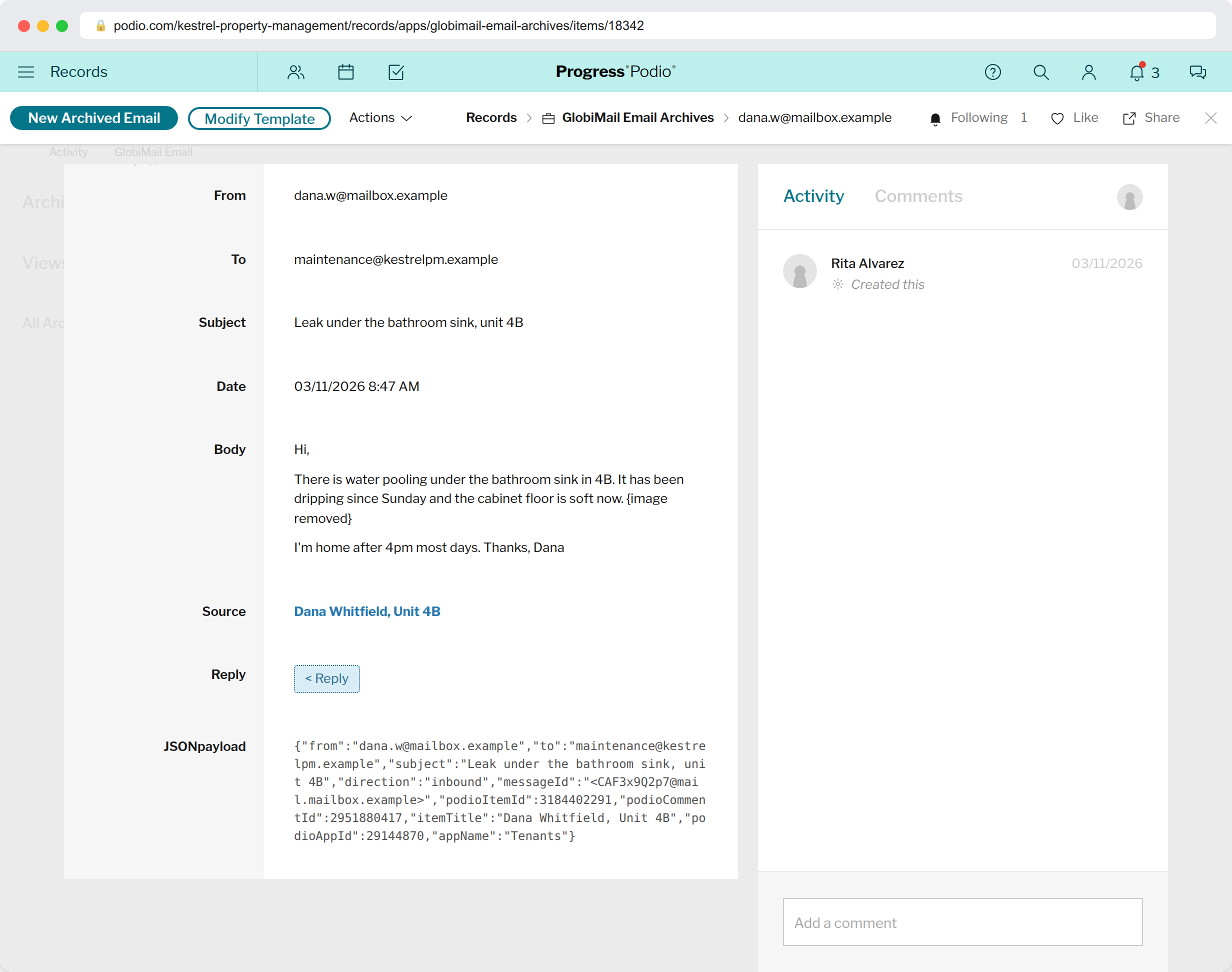
When the tenant item is deleted, the Source link stops working. Nothing else changes. The archive item still has the sender, the date, the body and the original message.
Making the archive easy to report on
Podio filters work poorly on text fields. You can't filter an app by "inbound" if direction only exists inside a block of text. The JSONpayload field fixes that. For each email it holds the from, to, subject, direction, messageId, the Podio item and comment IDs, the item title, and the app name.
The firm wanted one report: inbound tenant emails per month. Two steps.
1. Add a field. Edit the archive app template and add a Category field called Direction with the options inbound and outbound. Add fields. Never delete or rename the ones GlobiMail created (see below).
2. Fill it with a Podio Workflow Automation flow. Trigger the flow on update of the JSONpayload field. GlobiMail writes the payload just after it creates the item. Add a condition that the field was previously empty, so the flow runs once per email. Then set a custom variable with this calculation and use it to update Direction:
json_decode(strip_tags([(Archived Email) JSONpayload]),true)["direction"]
The same pattern pulls out appName, so you can count how much email each app handles. Or pull podioCommentId to match status webhooks and record opens against the archive.
Three rules for the archive app
Don't delete GlobiMail's fields. If a field is missing when an email arrives, GlobiMail disables archiving and emails the account owner. The Check button on the archiving page looks for missing fields and recreates them.
Watch the item count. A Podio app holds about 500,000 items. At 2,600 a month the firm has more than 15 years of room. If an archive app does fill up, GlobiMail disconnects it and emails you. Create a fresh one and keep going. The full app stays as it is.
Disconnect is permanent. Once you disconnect an archive app, you can't reconnect it. You can only create a new one. Don't use it as a pause button.
The result
The next dispute came in September, over a move-out inspection. The office manager opened the Records workspace and searched the archive app for the tenant's address. Nine emails came back, the earliest from the tenant's first week. She opened the .eml for the one that mattered and forwarded it, with its original date and headers, to the tenancy board.
It took four minutes. The tenant item it came from had been merged twice since.
Nobody on staff changed how they work. They still reply from Podio, still clean up duplicates, still forget to BCC anything. The archive fills itself.
Set it up
Email Archiving is on the Email Archiving page of your GlobiMail account. The mailbox option takes one field. The Podio app takes one dropdown and one click. Archiving starts with the next email.
The Email Archive help article covers the reporting flows in more detail.